¶ Importing a module
When you import a module, you import it into your current game. If you have several games and want to use a module in more than one of them, you must import that module into each game.
To start the process, open the Codex menu, then click on Download Module…. This brings up a new window that lists all the modules currently publicly available in the Codex.
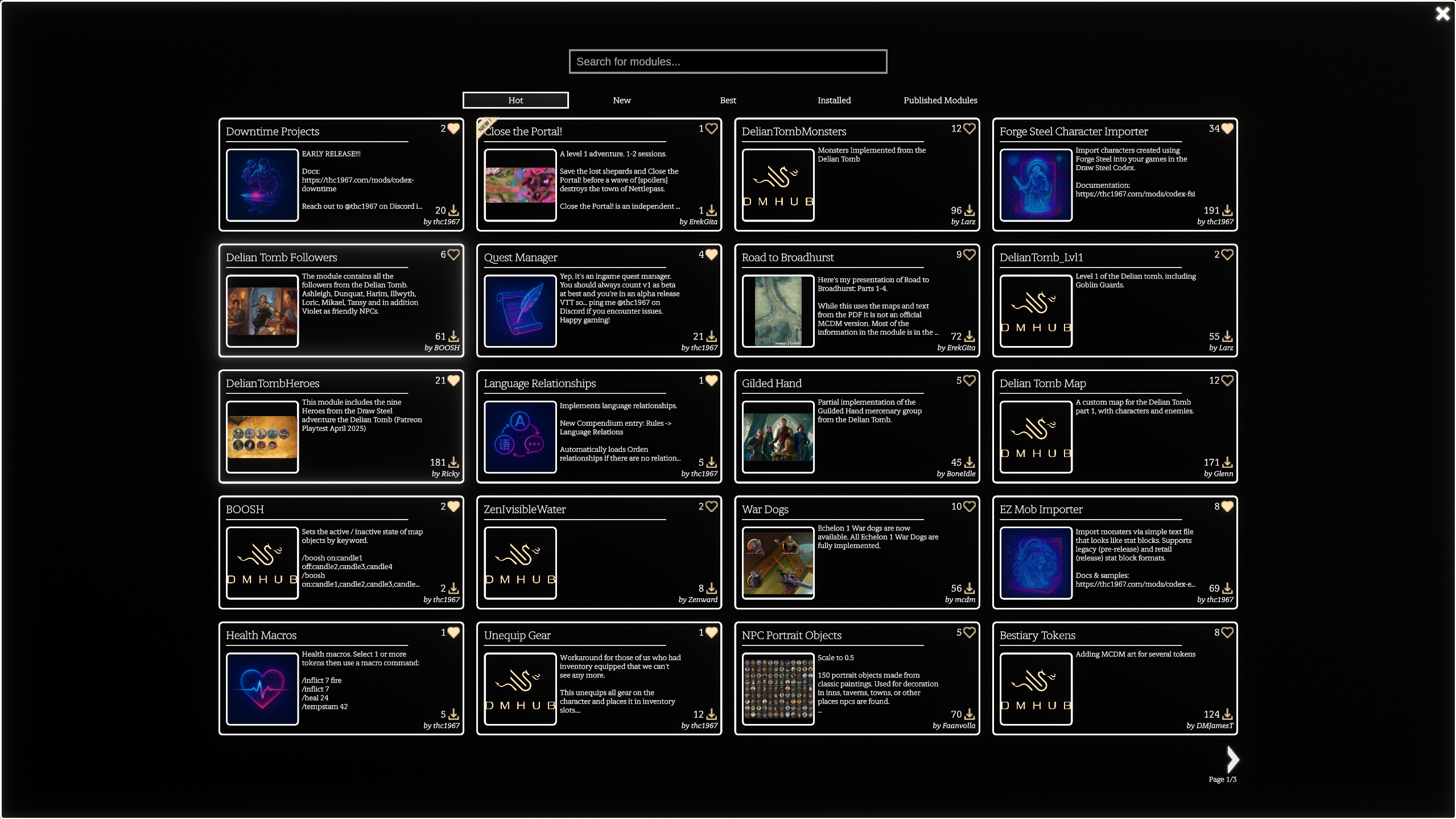
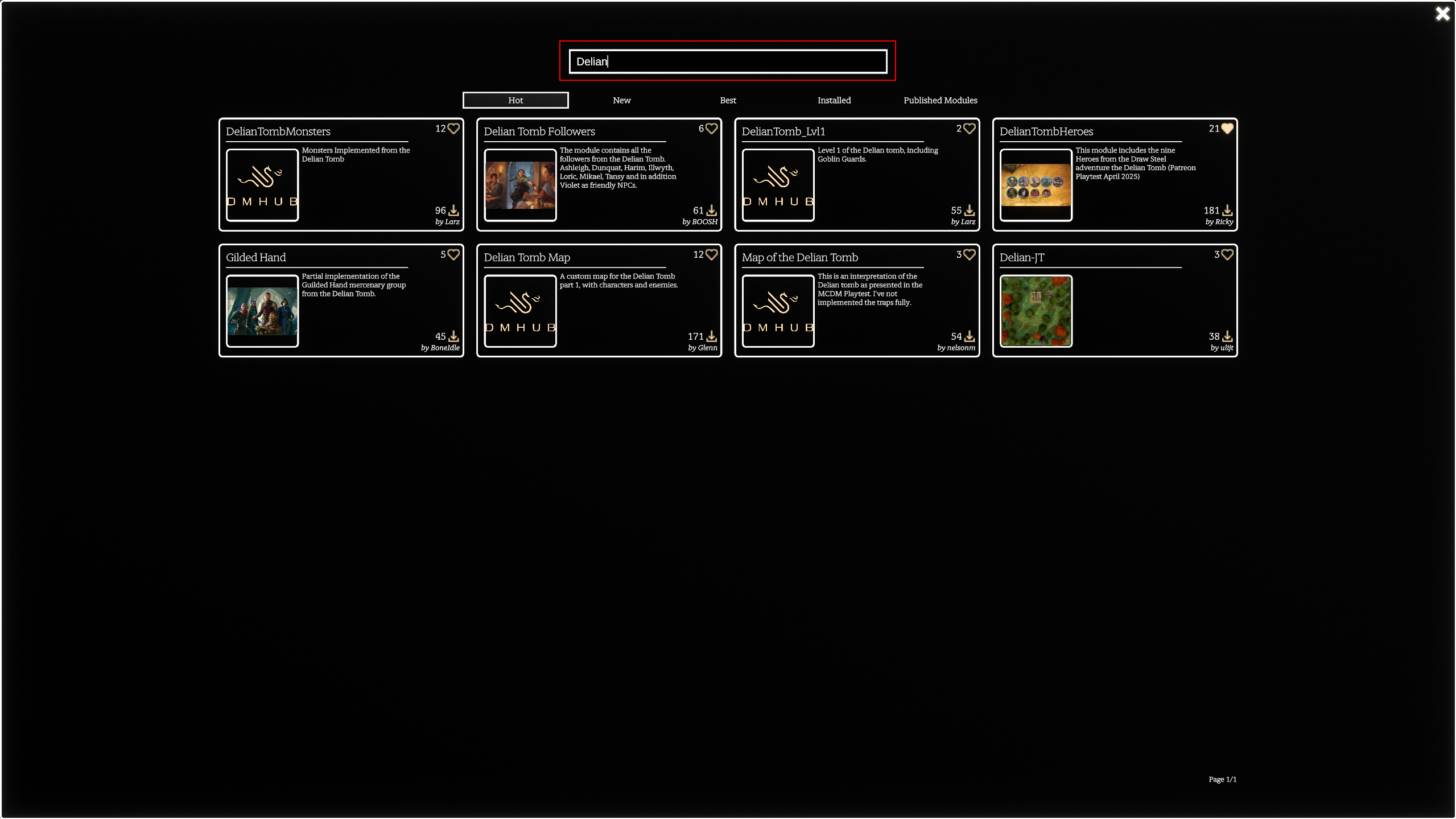
There are a few ways to narrow your search for the module you want to install:
- You can type text into the search bar at the top. This search text can be a partial module name, like “Delian” to find modules related to the Delian Tomb, keywords, or a unique module identifier like
boosh-dt0001if you know the unique identifier of the module you want to install.
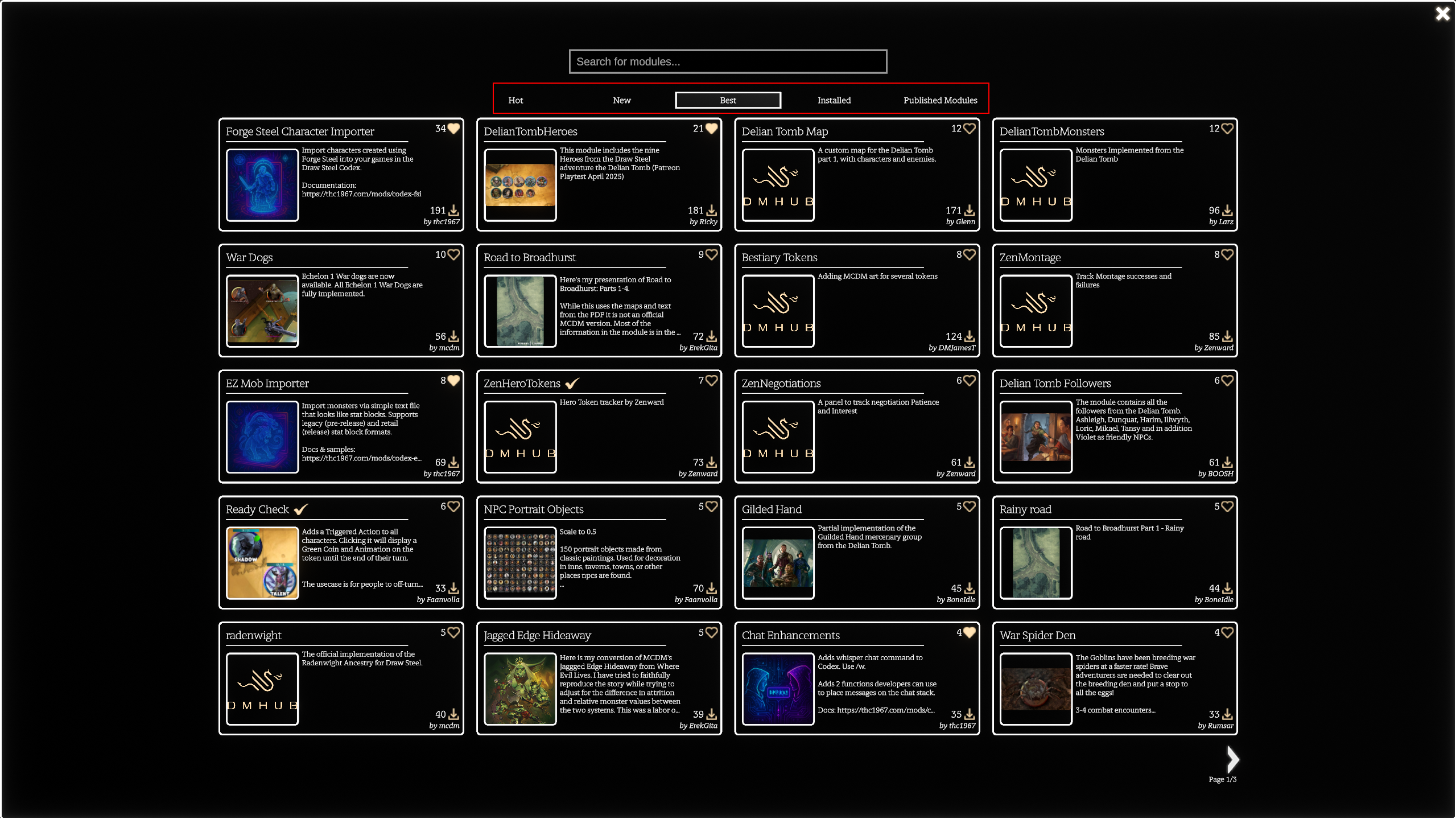
- You can use the navigation bar between the search bar and modules list to find Hot, New, Best (most favourited), Installed, and (your) Published modules.
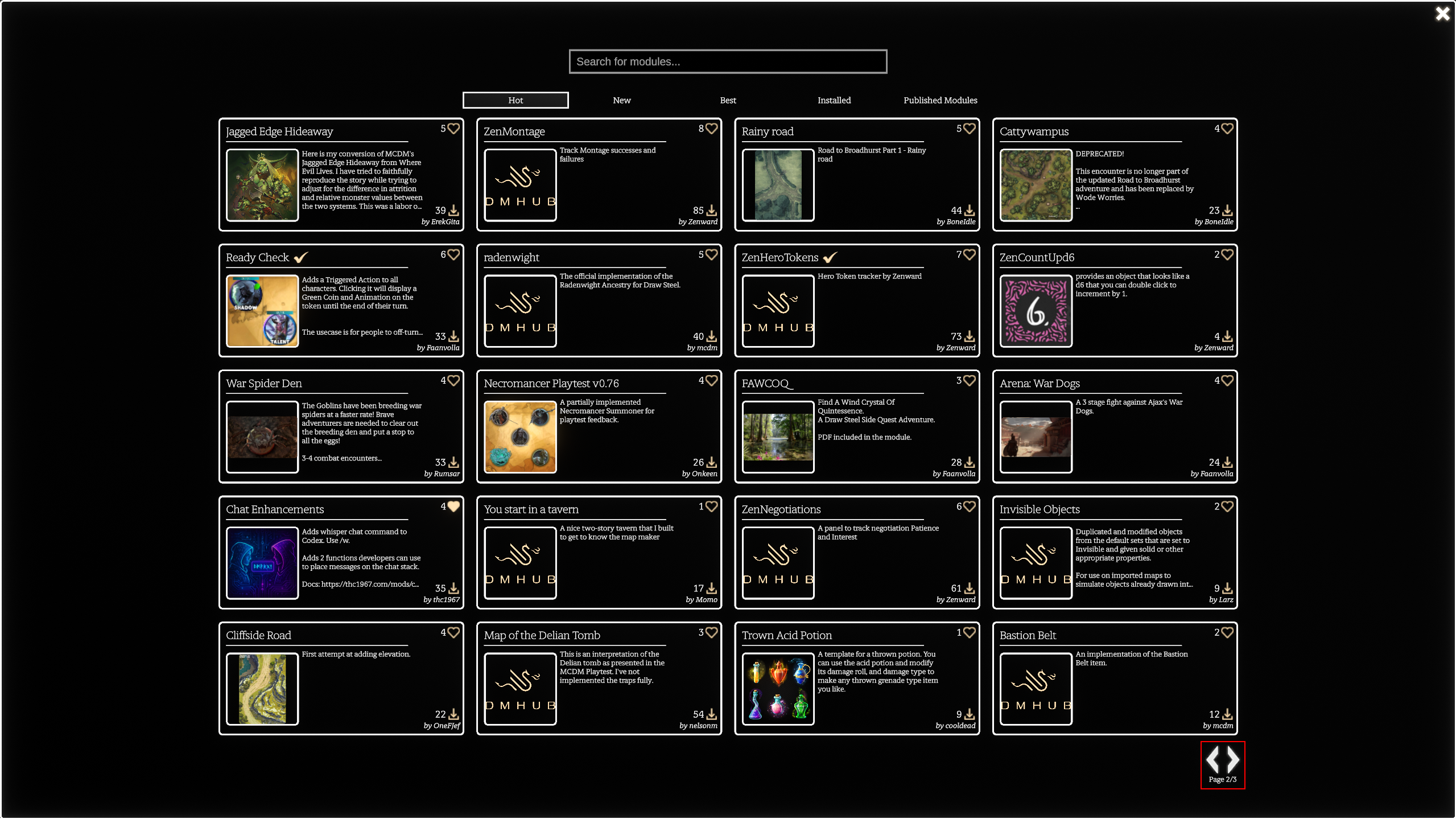
- Finally, you can use the paging buttons on the bottom-right of the module list to page through the list of modules displayed.
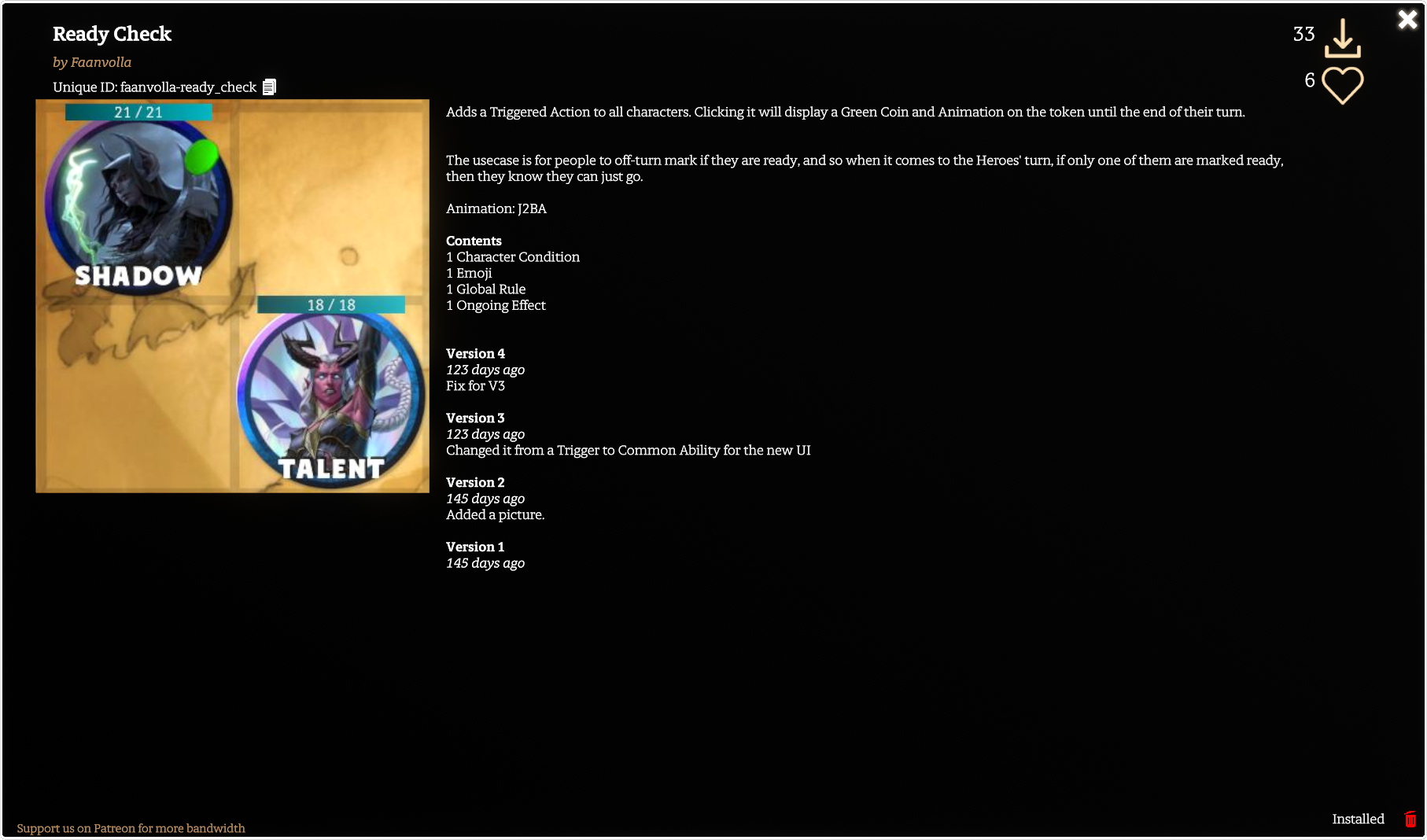
Once you've found the module you want to install, click it and Codex will show you more information about the module. You'll see its name, author, unique ID, perhaps an image, description, contents, revision history, number of downloads, number of favourites, the bandwidth required to install it and your remaining bandwidth, and an Install button.
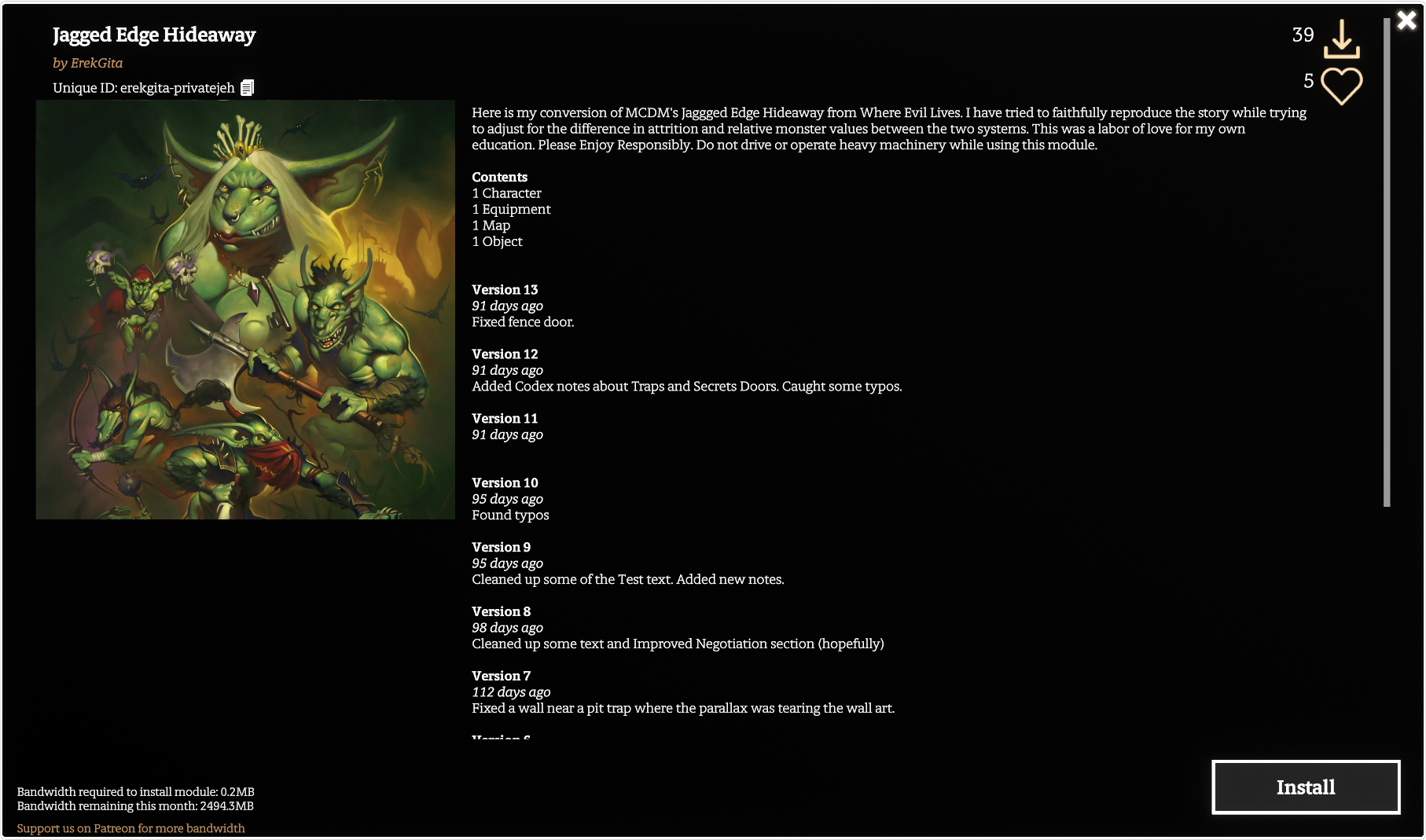
To install the module, simply click the Install button.
¶ Publishing a module
Publishing a module enables you to share it with other Codex users.
To start the process, create your content! It can be anything in the Codex - or any combination of anything in the Codex!
Once you're happy with your content and you are ready to share it, open the Codex menu then click Publish Module….
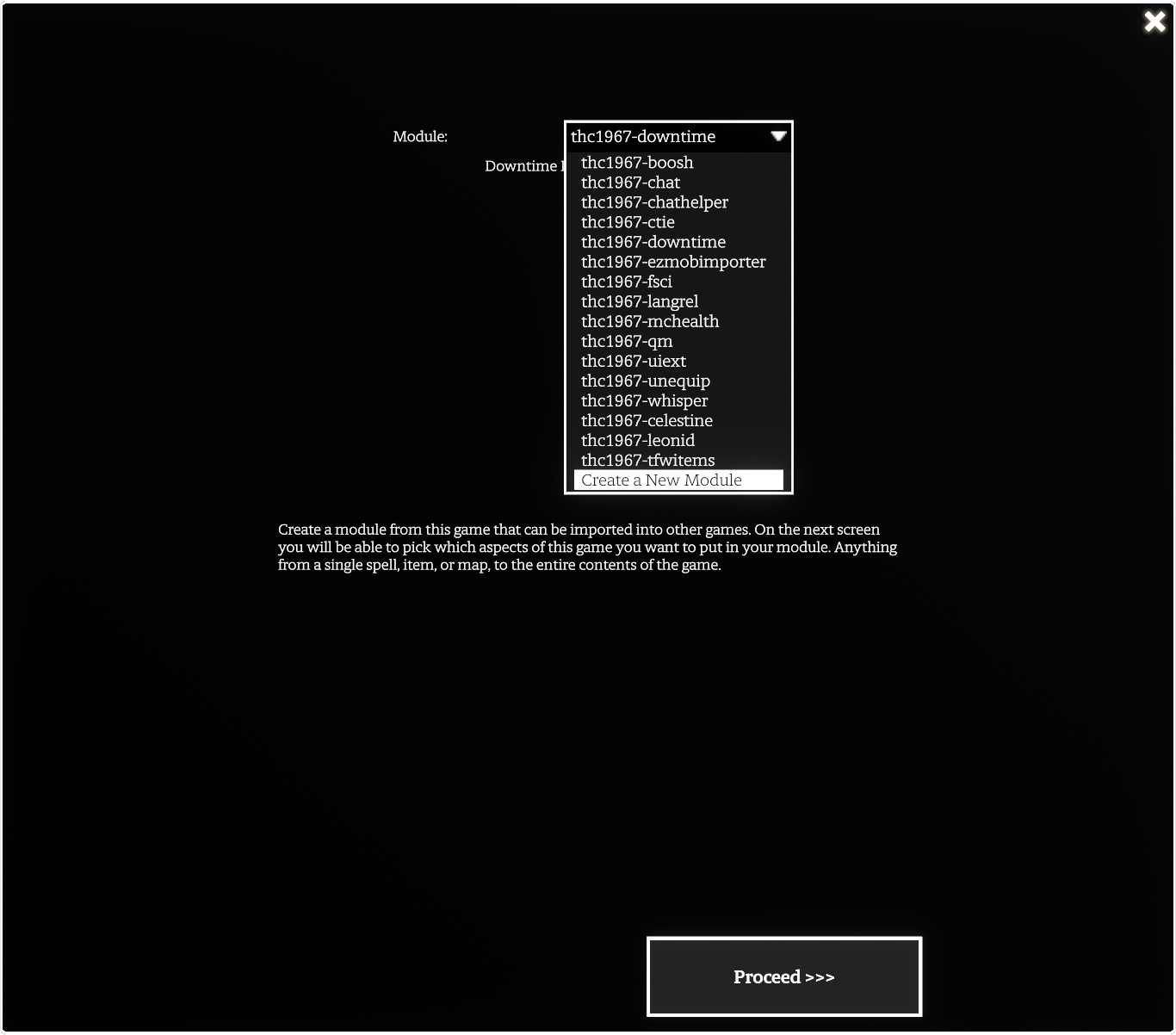
In the Publish Module dialog, you can choose to update an existing module that you've published or create a new one. The paths are similar so we'll focus on creating a new module. Select Create a New Module from the drop-down list and click the Proceed button.
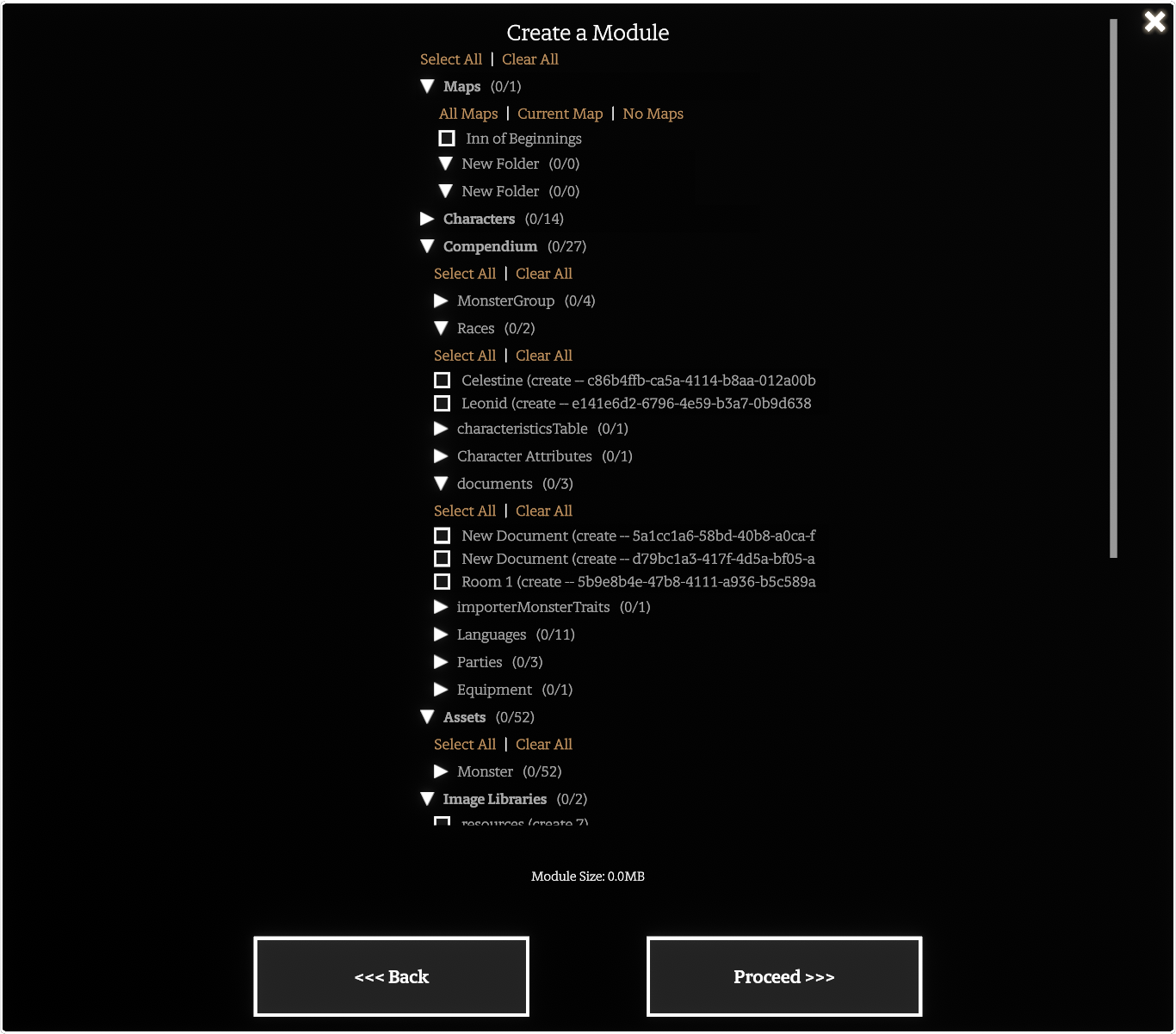
The Codex now displays the list of all custom items that have been created in your game. Scroll through those and tick the checkbox for all the items you want to include in your module and click the Proceed button.
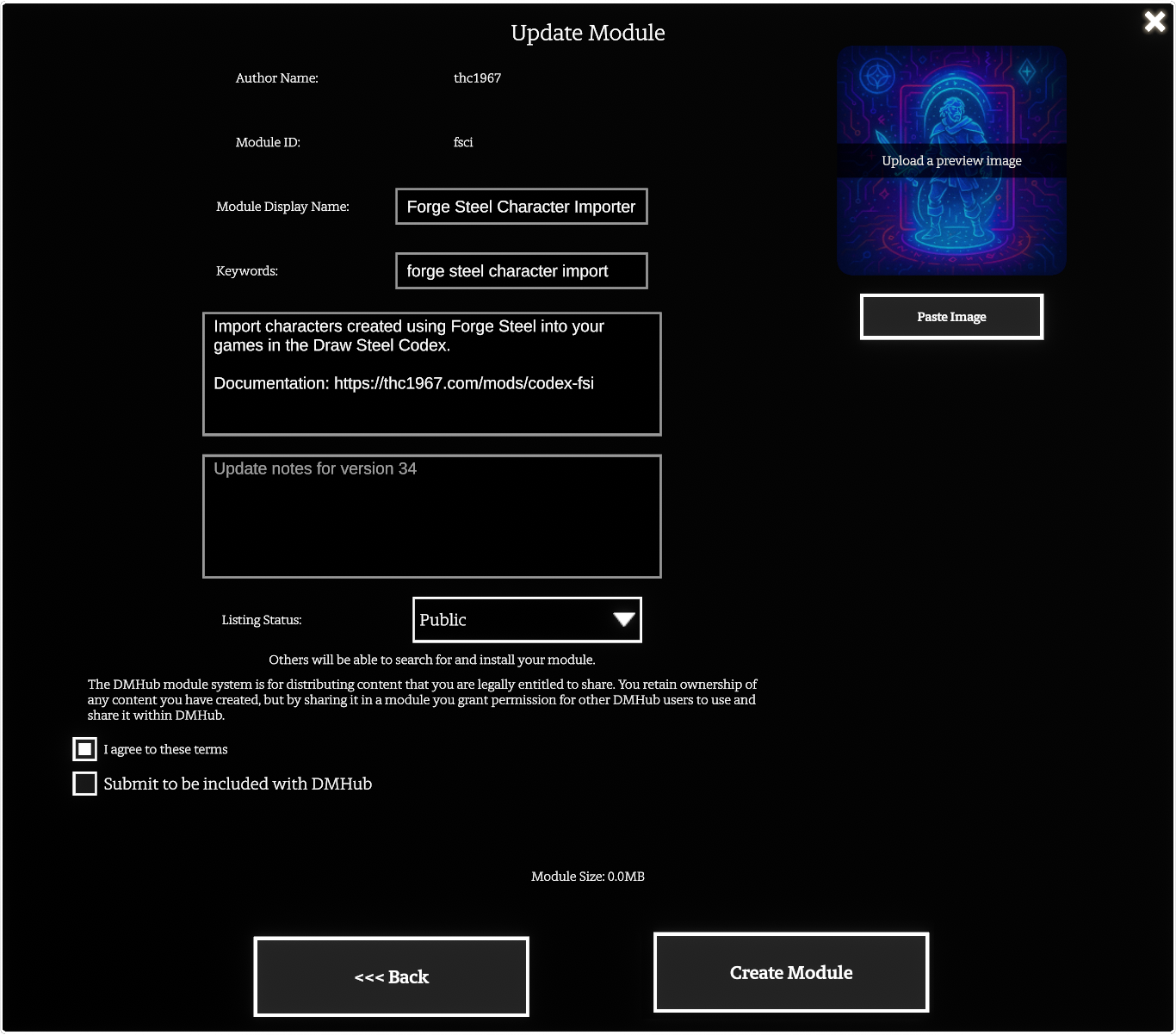
The Codex now display the Create a Module dialog. There are several fields to complete in this dialog:
Author Nameis your unique identifier in the Codex. You can't change this. It becomes the first part of the unique module identifier.Module IDmust be a string of letters or numbers, unbroken by whitespace, used as the second part of the unique module identifier.Module Display Nameis the friendly name / header for the module as you want it to appear in the Modules list.Keywordsare tags that other Codex users might use in the search bar to find your module.Descriptionis a description of what your module contains or does.Listing Statusis Public or Private. If you publish Publicly, everyone will be able to download it. If you publish Privately, only people who know the module's unique identifier will be able to download it.Agree to Termsis required to publish a module in Codex. If you don't agree to the terms, don't publish your module.Submit to be included with Codexis an optional checkbox. If you check this checkbox, you are offering the developers the right to include your module into the Codex without compensation. There is, of course, no guarantee the Codex developers will take you up on your offer.Preview Imagein the upper-right corner is the image you would like to associate with your module.
Once you're happy with the contents of the form, click the Create Module button.
¶ Uninstalling a module
To remove a module from your game, open the Codex menu then click Download Modules….
In the Modules screen, click on the Installed navigation bar item. This will show you all of your installed modules.
Click on the module you want to remove.
In the lower right corner of the module detail window, click the trash can icon and confirm the uninstall warning dialog.
Important: You must have the current version of the module installed in order to remove it. If you see an Update button in the lower right corner of the module detail window, update first, then remove it.