Objects are the cornerstone of Codex's map-making and automation mechanics, allowing for player interaction with the world naturally. Using Object Properties, you can add a variety of tricks and traps to your game to keep your players engaged and give your voice a rest from having to describe every piece of treasure in a dragons' hoard.
¶ Placing Objects
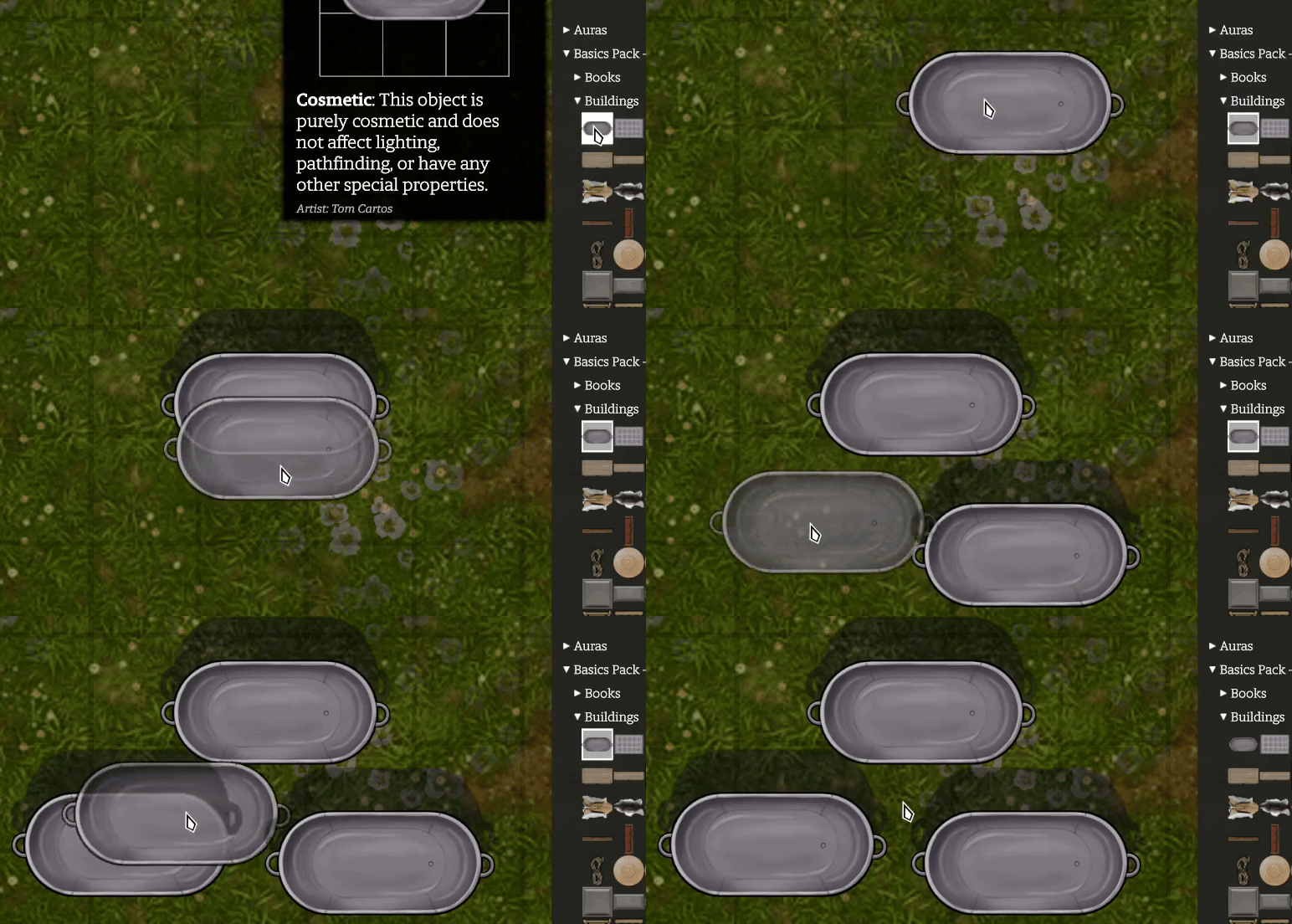
Objects function on a basic drag-and-drop system. Hover over the item in the ‘Objects’ panel, left-click, then left-click anywhere on your map you would like to place the object. Right-click will then deselect the object allowing you to freely click around the map again without placing the object.
Object placement does not snap to grid as of yet, but can be moved simply by left-click and dragging the object.
Things like object rotation and scale can be edited within the ‘Core’ Object Property, accessed by left-clicking an object.
By default, the first object you place will be below any objects you place after it, just like if you placed down objects on a desk in real life. However, this does not apply to copy-pasted objects, which will be ‘under’ already placed objects. To mess with this order, you can right-click an object and select ‘Move to Top' or ‘Move to Bottom’
¶ Adding Objects
¶ Object Core
Most of the default customization one would expect in a standard VTT is behind the Object Core property. You can access this by left-clicking any object placed down on a map or by right-clicking and selecting ‘edit object’ on a blueprint in the objects' panel.
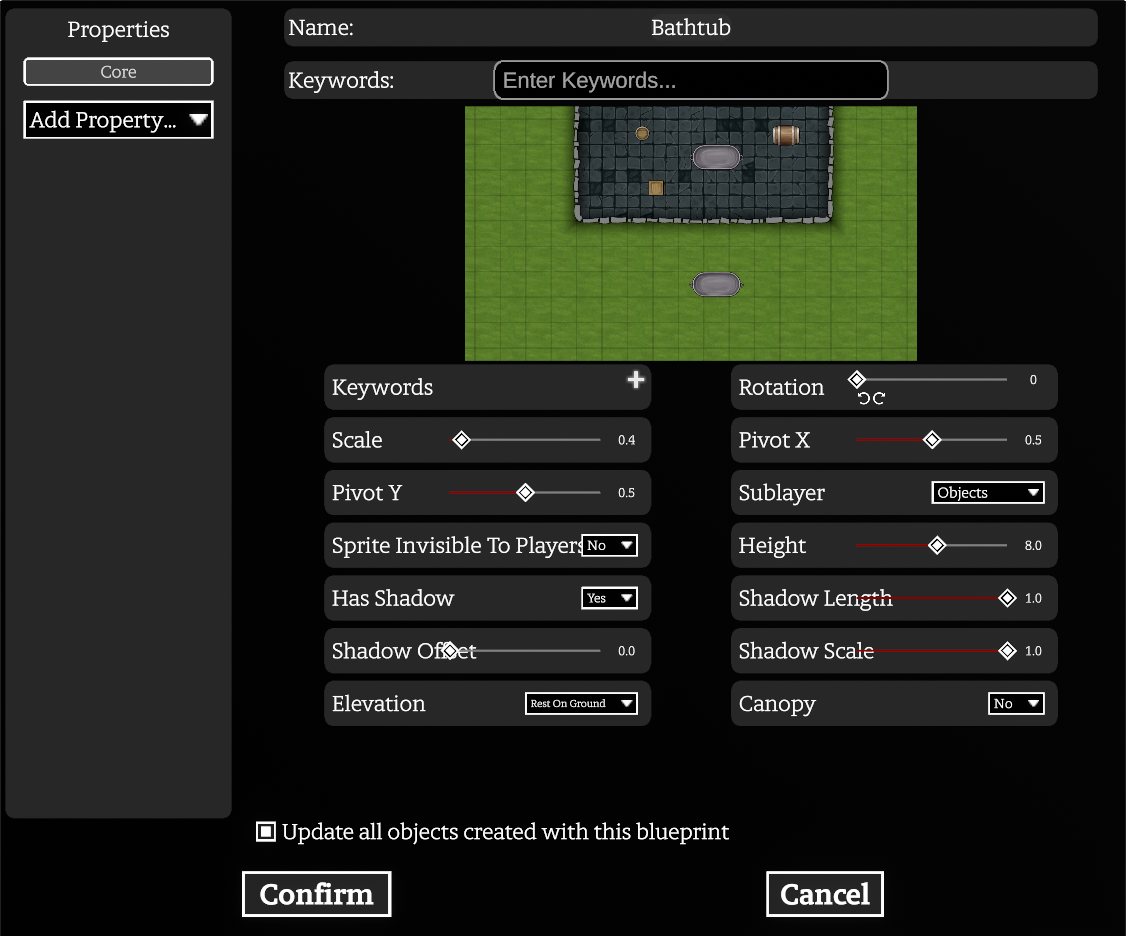
The below table will be using the Blueprints editor as the example. All settings mentioned can be accessed in both editors except for the blueprint saving buttons. The distinction here is noted separately. By default, Blueprint editor edits the object default while individual editor edits only a singular object.
|
1. Name | Changes the name of the Object. |
| 2. Keywords | Adds a keyword that can be referenced by Goblin Script | |
| 3. Rotation & Scale | Changes the rotation and scale of the object. | |
| 4. Pivot X/Y | Sets the objects' visual off center from its actual placement. | |
| 5. Sublayer | Changes what types of Codex features the object will appear on top of. Listed items are ordered. | |
| 6. Sprite Invisible… | Changes if the sprite image is visible to players. | |
| 7. Height | Changes the mechanical and visual height of the object. | |
| 8. Has Shadow / Length / Offset / Scale | Changes the objects' Shadow accordingly. Visible while editing. | |
| 9. Elevation | Sets the object to either rest on the ground or allows you to give it a static elevation. | |
| 10. Canopy | Determines if the object should have slight opacity (to be tested properly) | |
| 11. Save to Blueprint | Saves the current settings to the already created object blueprint | |
| 12. Save to New Blueprint | Saves the current settings as a brand new object blueprint | |
| 12.5. Update all Objects… | Updates all placed objects to reflect the blueprint changes |
¶ Object Properties
Every object in Codex is made up of the picture you can see, and properties that control how the object behave. These are fittingly called ‘Object Properties’. This allows for a huge range of freedom and creativity with each object, as a simple recolour and some object property shenanigans can flesh out a scene.
Each objects' default properties can be viewed by right-clicking and selecting ‘Edit Object’. On the left-hand side, the properties will be displayed and can be clicked through. Anything edited on this screen will become default for that object within your game, so if you use something often, it's best to make a copy (right click > Duplicate Object) before messing around with its' default settings.
When placed, you can view an objects' properties by clicking on it, bringing up the object editor panel. This will affect only the singularly placed object on the map, and not the default settings.
Every object property can be right click > copy and then right click > paste onto any object, though all should be selectable on the drop-down as well.
You can block an object from being edited or moved by selecting the lock in the top right-hand of the object editor panel.
¶ Object Property Reference
| Category | Property Name | Description | Visual Example |
|---|---|---|---|
| Misc. | Core | The main event. Where core object properties are located including default appearance settings. Outlined in Adding Objects | |
| Area Template | Shows a border around the area specified. Usually default on objects that represent Hero Auras. | ||
| Light Source | Shows on-hover if an object contains the 'Light' property. Object emits light, useful for adding lamps or candles to an otherwise pitch black scene | ||
| Cosmetic | Not technically a property itself, will show up on-hover if an object does not contain any properties outside of 'Core' | ||
| Occlusion | Not a property itself, will show up on-hover if an object is 'Solid' but only blocks light, not movement or vision. | ||
| Animation | Particles | Controls Particle effects emenating from the object. Can be used in conjunction with other effects to create dynamic items | |
| Animation Curve | Controls the animation of a given object. | ||
| Key Frame | Records a 'key frame' of an object. Can be used as a 'state' to swap between, as an example. | ||
| Path Animation | Records a path for the object to move on. Useful for moving objects in the background. | ||
| Video Control | Controls the playback speed of a video - only usable for MP4s. | ||
| Display | Appearance | Changes the appearance of an object. Usable in conjunction with Key Frame for differing states. | |
| Audio | Attaches an audio file to the object, emitting from that object as a source. | ||
| Parallax | Adds a parallax effect to the object, giving it depth. | ||
| Stretch | Allows you to stretch the image of an object as well as invert it. This is also how to flip an image. | ||
| Text | Adds text on top of the object. | ||
| Editing | Wall Attachment | Snaps an item to walls | |
| Gameplay | Token Effect | Usually a functional property that plays the objects' animation upon an action - for example, the effect when a token falls down a floor. | |
| Aura | Objects that are created as part of a spell or ability and can affect creatures. | ||
| Darkness | Projects a circle of magical darkness from an object. By default fully overrides any light in the area but can be toned down. | ||
| Floor | Lets an object act as a floor with relevant properties (difficult terrain, ect.). Allows players to walk on top of objects proper. | ||
| Light | Turns an object into a light source. | ||
| Loot | Adds a loot inventory to an item and allows players to loot from it. | ||
| Solid | Gives an object wall-like properties. By default blocks movement, light and vision. | ||
| Targetable | Allows an object to be targeted like a player or monster. | ||
| Interactable | Button | Allows an object to be clicked on, and to store a value of those clicks. | |
| Hover Text | Adds a text box to an object that shows up when someone hovers their mouse over the object. | ||
| Interactive | Makes an object interactable - currently only supports sign posts by default. | ||
| Mount | Indicated an object can be 'mounted' i.e. a creature can sit on the object. Applies to chairs and other seated objects. | ||
| Moveable | Allows an object to be moved by players in range. | ||
| Pressure Plate | Adds a value when object is moved on top of by a player, monster, or solid object. Can be used to trigger actions in other objects. | ||
| Sign | Allows linking of an image or document on-click to players, functions similarly to the Interactive property. | ||
| Portals | Teleporter | Allows the transporting of creatures from point A to point B, can be across the same floor on the same map, different floor on the same map, or even other maps entirely. Only cannot leave the game. 2 Must share the same code to connect. | |
| Door | Makes an object function like a door - snapping to walls, opening on-click and blocking light, vision and movement when closed. Can be a bit janky to get working with random objects. | ||
| Stairway | Makes an object function like a stairway - bridges between 2 layers, allows players to walk up and down it. | ||
| Window | Makes an object function like a window - snapping to walls, providing vision through the wall. | ||
| Triggers | Action | Adds triggerable actions to an object. Can control things like switching between key frames, changing visibility, ect. | |
| Trigger | Allows the object to trigger a different object's Actions. | ||
| Trigger Ability |